← Back to CSS
13

`display` and `position`: control flow and placement

Learn how to control document flow with `display` and place elements with `position` without breaking the layout, so common CSS behaviors stop feeling mysterious and start feeling predictable.

📘 Theory

`display`: the default behavior of the box

This property decides whether an element behaves like a section, a piece of text or a self-sized tile.

`block` takes the full available width and starts on a new line.

`inline` flows with the text and does not accept width or height in the same way.

`inline-block` combines both ideas: it flows inline but still accepts dimensions and padding.

`display: none` removes the element from layout entirely.

  • Use `block` for full sections and structural regions.
  • Use `inline-block` for badges, pills or compact controls.
  • Avoid `display: none` when you need transitions; visibility and opacity are often a better fit.
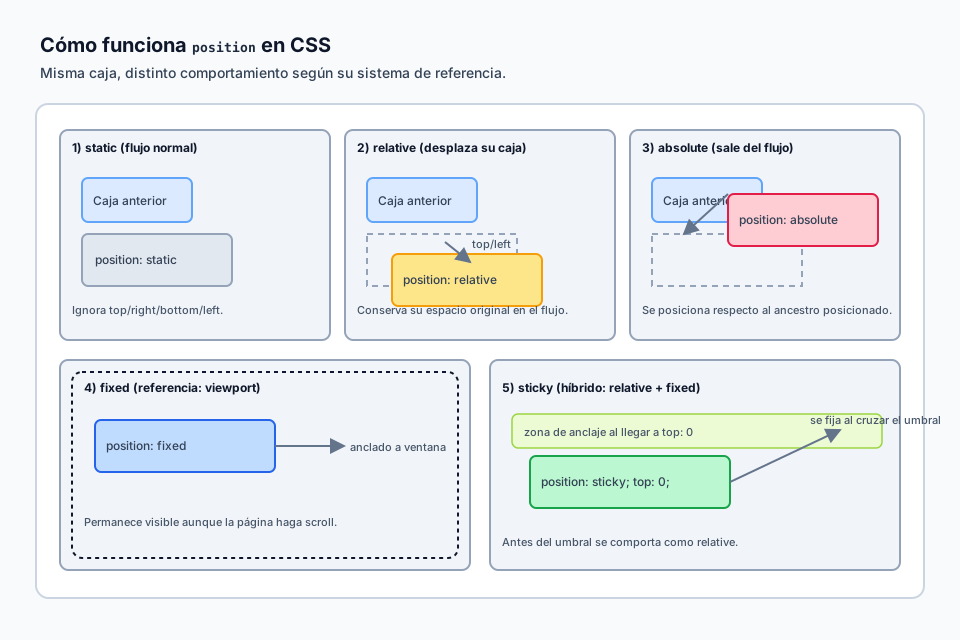
`position`: move elements without rewriting the source order

Each positioning mode follows different rules.

1

`static` is the default: the browser places the element according to normal flow.

2

`relative` offsets the element from its original place without affecting the surrounding layout.

3

`absolute` leaves the flow and positions itself relative to the nearest positioned ancestor.

4

`fixed` attaches itself to the viewport, while `sticky` behaves like relative until it reaches a defined sticking point.

Layers and `z-index`

Stacking order is often less obvious than it looks.

`z-index` only works on positioned elements such as relative, absolute, fixed or sticky ones.

Certain properties create new stacking contexts too, including a positioned element with `z-index`, transforms and opacity values.

If something disappears behind another element, check whether you are dealing with a higher stacking context instead of assuming the value is wrong.

  • Use deliberate steps such as 10, 20 and 30 instead of random huge values.
  • Avoid giant numbers unless you truly need them.

Helpers for managing flow

Small adjustments can prevent many common layout problems.

1

`overflow` controls whether content spills out, scrolls or gets clipped.

2

`visibility: hidden` hides an element without removing its place in the layout.

3

A sensible `min-height` can prevent visual jumps when content grows unexpectedly.

🧭 Key visuals

How `position` works

Helps you see which reference system each `position` value uses.

Comparison of `position: static`, `relative`, `absolute`, `fixed` and `sticky`.

🧪 Learn by doing

Example Visual demo: static and normal flow See how `static` respects normal flow and why `top` or `left` do nothing in that mode.
Example Row of cards with inline-block Turn several boxes into a row without using Flexbox.
Example Absolute badge inside a card Practice the `relative` + `absolute` pairing.
Example Sticky header A bar that stays visible while the user scrolls.

🏁 Challenges

Challenge Challenge: floating tooltip Position a tooltip relative to its button trigger.

🧰 Resources

What is this?

I'm Cristian Eslava and I sometimes build websites so both you and I can learn and experiment. culTest

I made this in February 2026 to make learning easier for my students. The idea is to learn web development by practicing and to keep expanding the project with new topics, tests and challenges.

It draws inspiration from MDN, W3Schools, CodePen, Manz and many other web development references. I wanted to combine useful theory, runnable examples, challenges and the testing system I had already built for culTest. culTest

If you liked it, if you didn't, or if you want to get in touch, write to me at cristianeslava@gmail.com