← Back to CSS
32

Flexbox in depth: containers and flexible items

Master Flexbox through axes, alignment, distribution, wrapping and item-level control with real examples and an interactive lab.

📘 Theory

Core concepts

Flexbox makes more sense when you separate the container from the items and keep the axes in mind.

Flexbox works in one dimension: it organizes content as a row or a column.

The container defines the direction, spacing and alignment rules, while the children become flexible items that respond to those rules.

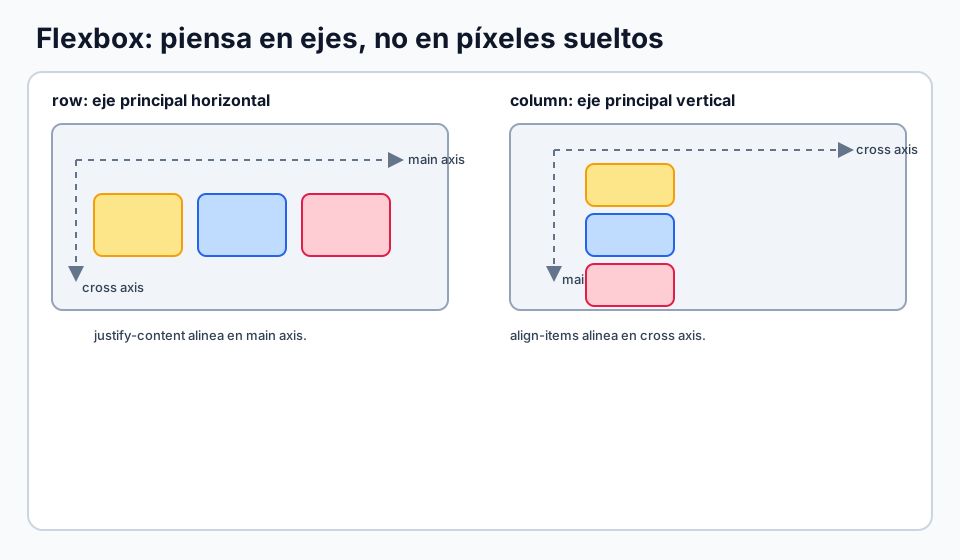
Two axes control almost everything: the main axis and the cross axis.

  • Main axis: the primary direction, usually controlled by `flex-direction`.
  • Cross axis: the perpendicular direction.
  • Container properties affect the group; item properties affect a specific element.
Container properties

These properties define direction, alignment and space distribution.

`display: flex` activates a flexible formatting context.

`flex-direction` sets the main axis: `row`, `row-reverse`, `column` or `column-reverse`.

`flex-wrap` decides whether items stay on one line or wrap onto multiple lines.

`flex-flow` is shorthand for direction plus wrap.

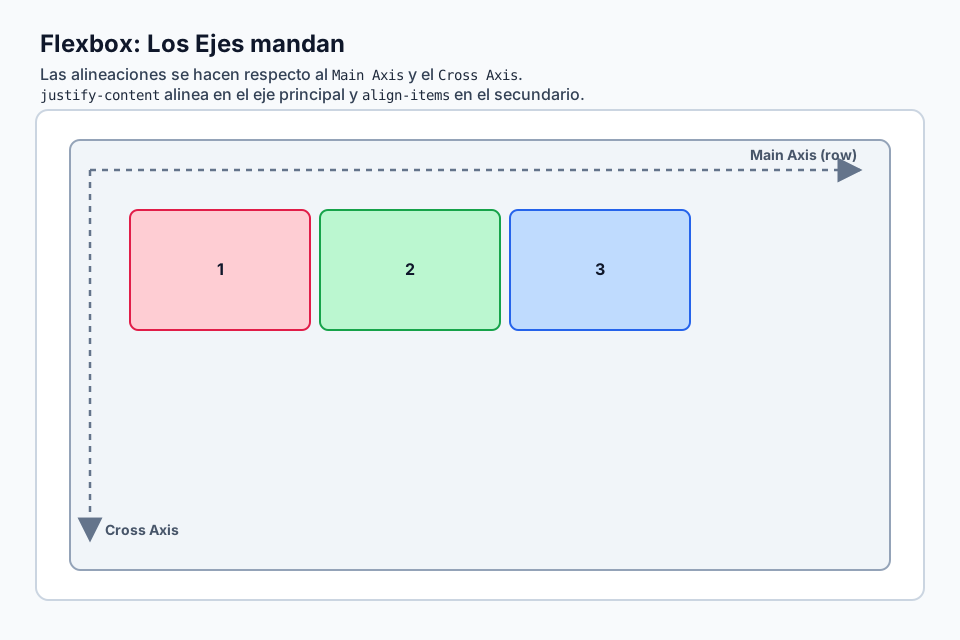
`justify-content` aligns along the main axis.

`align-items` aligns along the cross axis.

`align-content` distributes wrapped lines when multiple lines exist.

`gap` adds spacing between items without requiring margin hacks.

Item properties

This is where individual elements become more flexible or more opinionated than the rest.

`order` changes the visual order without changing the HTML source.

`flex-grow` decides how much an item expands when free space is available.

`flex-shrink` decides how much an item can compress when space is tight.

`flex-basis` sets the initial preferred size before grow or shrink take effect.

`flex` is the shorthand that combines grow, shrink and basis.

`align-self` allows one item to align differently from the rest of the row or column.

Useful layout patterns

These are the patterns you will reuse in real interfaces all the time.

  • Perfect centering: `justify-content: center` + `align-items: center`.
  • Navbar split: `space-between` separates logo and menu cleanly.
  • Responsive card rows: combine `flex-wrap` with `flex-basis`.
  • Button groups: use `gap` instead of ad-hoc margins.
  • Auto margins: `margin-left: auto` is ideal when one item needs to push itself to the far edge.

🧭 Key visuals

Flexbox axes

Helps learners see where each alignment property acts before they memorize any syntax.

Diagram showing the main and cross axes in flexbox for row and column directions.

Flexbox axes and alignment decisions

Clarifies where `justify-content` and `align-items` act depending on container direction.

Diagram of main axis and cross axis for row and column flex containers.

🧪 Learn by doing

Example Interactive demo: visual Flexbox lab Explore axes, alignment, wrapping and space distribution in a more complete layout playground.
Example Responsive card row

🏁 Challenges

Challenge Challenge: navbar with Flexbox Keep the logo on the left and the menu on the right.

🧰 Resources

CodePen: layout with Flexbox
Open in CodePen

What is this?

I'm Cristian Eslava and I sometimes build websites so both you and I can learn and experiment. culTest

I made this in February 2026 to make learning easier for my students. The idea is to learn web development by practicing and to keep expanding the project with new topics, tests and challenges.

It draws inspiration from MDN, W3Schools, CodePen, Manz and many other web development references. I wanted to combine useful theory, runnable examples, challenges and the testing system I had already built for culTest. culTest

If you liked it, if you didn't, or if you want to get in touch, write to me at cristianeslava@gmail.com