← Back to CSS
41

Media queries and responsive design

Apply styles based on screen size, orientation or user preferences with `@media`. Learn mobile-first thinking and the viewport meta tag.

📘 Theory

What is a media query?

Conditions that the browser evaluates to decide whether a block of CSS should apply.

A media query wraps a block of CSS together with a condition. If the condition is true, such as “the viewport is at least 768px wide”, the browser applies that block. If it is false, the block is ignored.

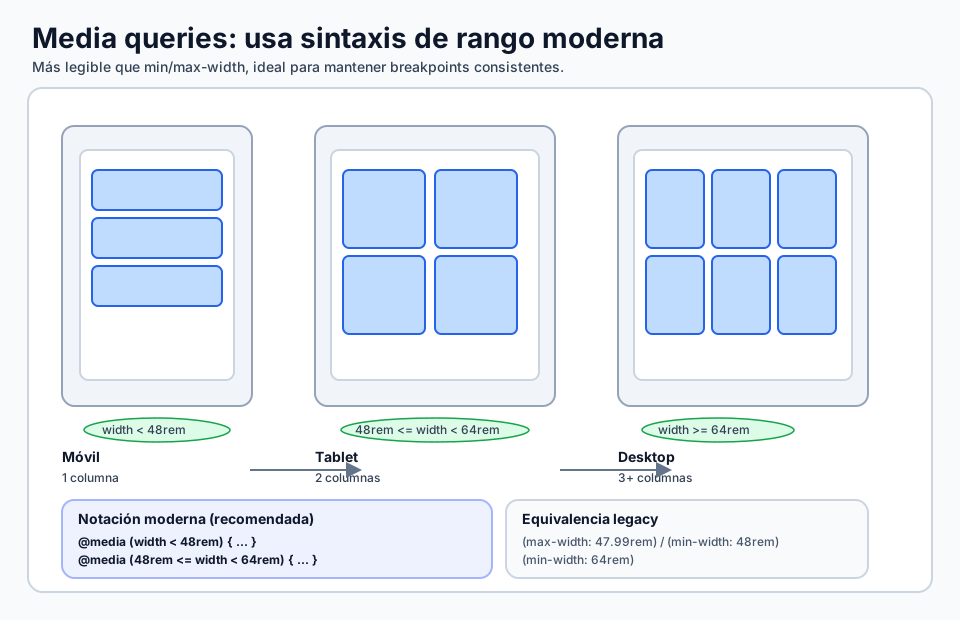
The syntax is `@media type (condition) { ... }`. In modern browsers it is often clearer to use the Media Queries Level 4 range syntax, such as `(width >= 600px)`, instead of the older `(min-width: 600px)`. It reads more like a mathematical comparison. Common conditions include `min-width`, `max-width`, `orientation`, `prefers-color-scheme` and `prefers-reduced-motion`.
Mobile-first approach

Start with small-screen defaults, then expand with `min-width` or range syntax.

Mobile-first means defining the styles for small screens as the base layer, usually without a media query, and then using `@media (min-width: ...)` or `@media (width >= ...)` to add or override styles when more space becomes available. This keeps the code easier to maintain.

If you begin with a desktop layout and then patch it for smaller screens with `max-width`, you often end up overriding too many properties. With a mobile-first flow, complexity is added only where it is needed.

  • Base styles: one column, readable text and touch-friendly buttons.
  • At 600px or so: more columns or more breathing room for tablets.
  • At 1024px: broader layouts for desktop screens.

The viewport meta tag

Essential if you want media queries to behave correctly on phones.

Without the viewport meta tag, many phones simulate a wide viewport, for example 980px, and then scale the page down to fit. Media queries are evaluated against that fake viewport instead of the real device width.

With `` you tell the browser to use the actual device width and avoid that artificial scaling. Then a condition such as `(min-width: 600px)` or `(width >= 600px)` behaves as intended.

Anatomy and how to combine conditions

Use `and`, `not` and modern ranges when the design needs more than one condition.

For a range such as “tablet only”, the older syntax uses `and`: `(min-width: 600px) and (max-width: 1023px)`. Media Queries Level 4 improves this with range syntax: `(600px = width = 1024px)`. It reads like math and avoids the extra connector. You can also use `not` to invert a condition.

🧭 Key visuals

Breakpoints with modern range syntax

A visual guide for moving from min/max-width rules to cleaner range queries.

Mobile, tablet and desktop breakpoints shown with modern media query range syntax.

🧪 Learn by doing

Example Interactive demo: simulate the viewport Change the simulated width and see how the columns respond.
Example Responsive Grid with media queries Mobile base plus two breakpoints: 600px and 1024px.
Example Cards with auto-fit, no media queries needed A Grid with `minmax()` and `auto-fit` adapts without fixed breakpoints.

🏁 Challenges

Challenge Challenge: adaptive background The background should be blue on mobile and green from 768px onward.

🧰 Resources

CodePen: responsive layout
Open in CodePen

What is this?

I'm Cristian Eslava and I sometimes build websites so both you and I can learn and experiment. culTest

I made this in February 2026 to make learning easier for my students. The idea is to learn web development by practicing and to keep expanding the project with new topics, tests and challenges.

It draws inspiration from MDN, W3Schools, CodePen, Manz and many other web development references. I wanted to combine useful theory, runnable examples, challenges and the testing system I had already built for culTest. culTest

If you liked it, if you didn't, or if you want to get in touch, write to me at cristianeslava@gmail.com