← Back to CSS
38

`position: fixed` and `sticky`: persistent elements without breaking scroll

Learn when an element should anchor to the viewport with `fixed` and when it should follow its container scroll with `sticky`.

📘 Theory

Fixed: an absolute relationship with the viewport

Use it when the element must stay visible no matter where the user scrolls.

With `fixed`, the box becomes tied to the browser window itself. That is why it works well for floating support buttons, persistent notices, overlays or global action bars.

Because it leaves the normal flow, you need to account for the space it covers. A fixed header without compensation often hides the content underneath.

You also need to manage `z-index` deliberately because fixed elements often live in upper interface layers.

  • Good use case: support button, floating CTA, consent bar or modal overlay.
  • Poor use case: using `fixed` as a shortcut for the whole layout.
  • Always think about focus, accessibility and blocked space.
Sticky: follows scroll, but only inside its context

Sticky works best when the element belongs to a section and should stay visible while that section remains relevant.

1

A sticky element behaves like `relative` until it reaches its threshold. From that point it sticks, but not to the whole viewport forever. It stays constrained by the scroll container that governs it.

2

That makes it especially useful for table headers, reading indexes, section titles or filter sidebars that should remain available while the user is still inside the same block.

3

If `sticky` does not seem to work, the issue is often in the container: incorrect overflow, insufficient height or the lack of a `top` value.

A quick way to decide between them

The real question is not which one is better, but which reference system the pattern needs.

1

Use `fixed` if…

The element must remain visible across the entire page regardless of the current section.

2

Use `sticky` if…

The element belongs to the content and should remain visible only while its container is still active.

3

Avoid both if…

Persistent visibility adds noise but no real user value.

Frequent mistakes

Most bugs around these modes come from a small set of causes.

  • Using `fixed` without reserving space for the header or action bar.
  • Applying `sticky` without defining `top`, `bottom`, `left` or `right`.
  • Expecting `sticky` to work inside a poorly planned overflow container.
  • Raising `z-index` blindly instead of checking the actual layer hierarchy.

🧭 Key visuals

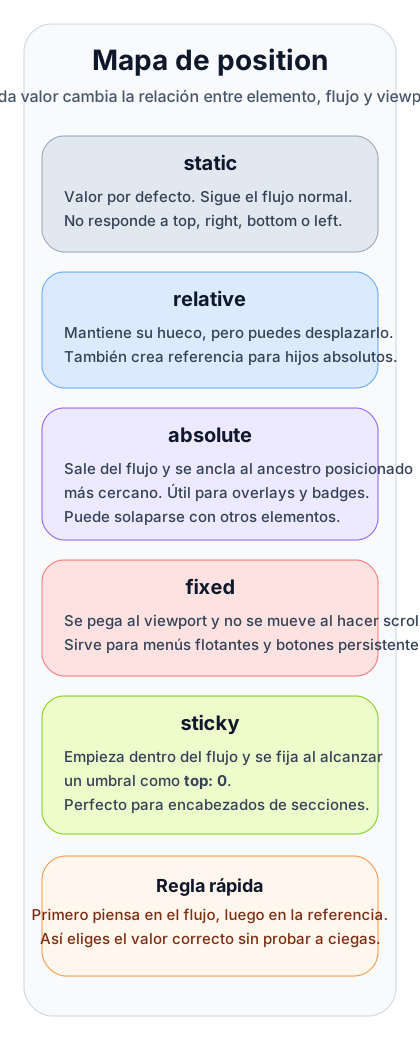
Quick position map for mobile and scroll-based UI

A visual reminder so learners do not confuse an element locked to the viewport with one locked to its scroll container.

Vertical summary of static, relative, absolute, fixed and sticky with focus on when to use fixed and sticky.

🧪 Learn by doing

Example Interactive demo: how `fixed` behaves Move a viewport-fixed element and observe how it stays visible while the page scrolls underneath it.
Example Interactive demo: `sticky` and its threshold See the exact moment when the element stops following the normal flow and starts sticking.

🏁 Challenges

Challenge Challenge: sticky reading sidebar Create a sidebar that stays visible on desktop without leaving the context of the content.

🧰 Resources

Test

Check your knowledge with a test about CSS.

Test for CSS

What is this?

I'm Cristian Eslava and I sometimes build websites so both you and I can learn and experiment. culTest

I made this in February 2026 to make learning easier for my students. The idea is to learn web development by practicing and to keep expanding the project with new topics, tests and challenges.

It draws inspiration from MDN, W3Schools, CodePen, Manz and many other web development references. I wanted to combine useful theory, runnable examples, challenges and the testing system I had already built for culTest. culTest

If you liked it, if you didn't, or if you want to get in touch, write to me at cristianeslava@gmail.com